How Can We Help?
ConnectUC Desktop Audio and Notifications
The ConnectUC desktop app has some settings to optimise the speaker and microphone to match the headset, laptop or external devices.
Select Preferences Option from the avatar in the top left.
Audio Settings
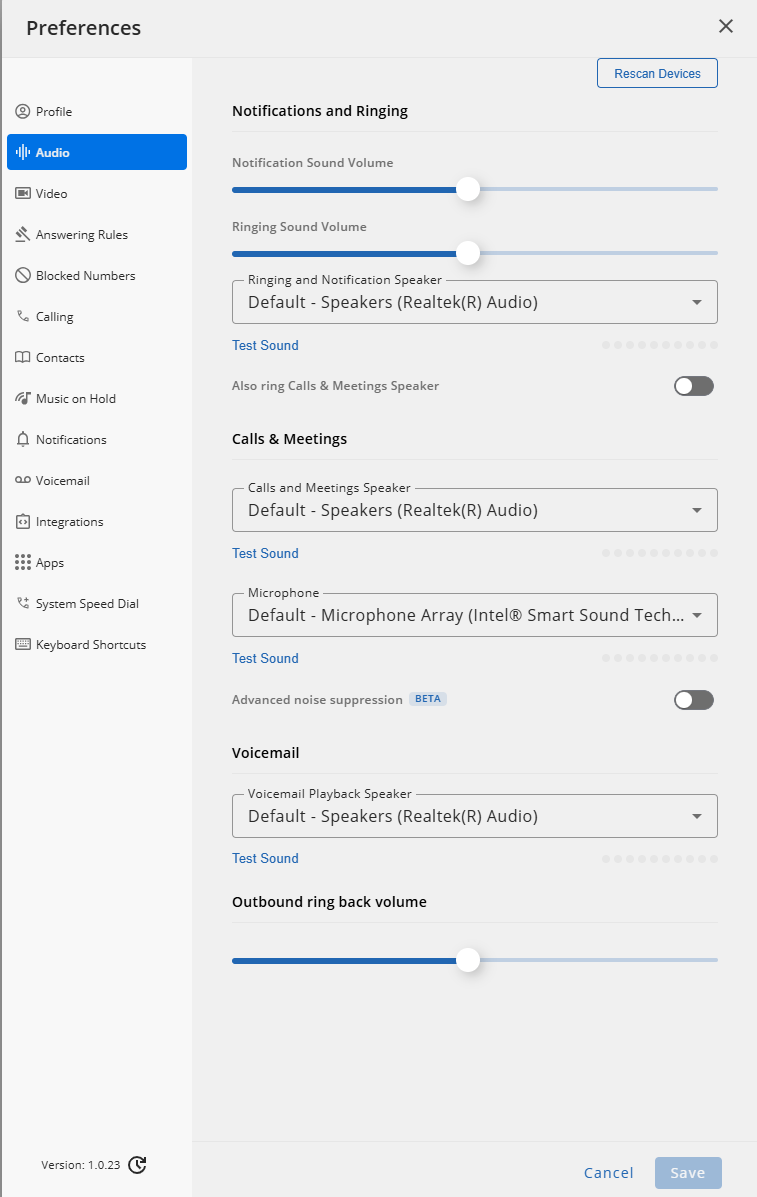
- Notification speaker: Select and press “Test Sound” to generate a tone to test the device.
- Calls Speaker: Select and press “Test Sound” to generate a tone to test the device.
- Microphone: Select and press “Test sound” . Speak and you should see the audio meter with the level, and will playback when stop
- Can also select the speaker to play back voicemail, and the volume of the ring tone you hear when making a call
Notifications
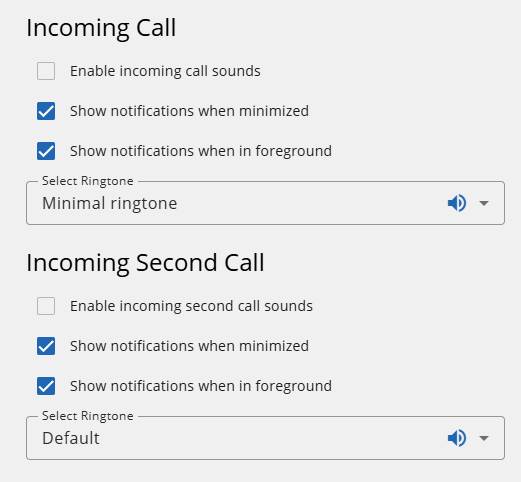
This section allows the user to enable audio and visual notifications, and select the ringtone.